
Key Takeaways
- Write specific prompts with design, color, and fonts to guide the AI designer
- Double-check the layout for design and content accuracy before downloading the file
- Ask for high-resolution prints made with 350 DPI in CMYK color mode
- Make sure the layout is for 3.5” x 2” business cards with 0.1″ bleed
Design Business Cards with AI
Designing AI business cards can be an efficient way to create a personalized networking tool. Instead of spending a significant amount of time laboring through the design process, AI platforms take a simple written prompt and turn it into art. Even people who are not necessarily design professionals can use AI to creatively customize their professional business networking tools.
Still, using AI tools to create business cards requires a bit of practice. An AI tool is only as good as the instructions it receives. That’s why crafting strong prompts can help speed up the process and produce results that match your vision. But you need to provide guidance beyond your artistic direction. You must inform the AI platform about business card dimensions, file resolution, color mode, and all the small details that create print-worthy designs. Doing this ensures the files you upload when you print business cards with GotPrint will look clear and detailed.
With that in mind, here’s how you can use AI to make unique business cards that fit your professional branding.
Choose an AI Business Card Generator
There are many different AI platforms you can use to create business cards. Your best options are the built-in AI tools. Canva and Adobe both have AI design tools that allow you to easily customize the design it produces. Simply generate a design, then use more hands-on design tools to manipulate graphics, edit text, and further personalize your layout. These are the best options for an AI-generated design that you can customize with ease.
Most people will use ChatGPT or Gemini to generate unique designs. These options are best for people who want to leave the entire design process up to AI. Submit your prompt and let the platform create a layout for you. If you need an AI business card generator free to access, these are the most popular options. Kodo is another platform you can use to customize business cards. There are also paid options, such as Midjourney. You can upgrade your ChatGPT or Gemini account to a paid tier and access more extensive design options.
How to Use AI to Design a Business Card
Step 1: Write a Direct Prompt
When you write prompts for AI, you need to be clear and specific. The phrase “business card for an accountant,” for example, is far too simple. The end result will be generic, and the layout will lack dimension and flair. Writing good prompts for AI business cards requires a plain, straightforward vision. You need to know what artistic style you’re envisioning for your business cards. Expecting AI to entirely do that work for you will result in boring layouts that don’t leave a lasting impression.
Having specific details in your initial prompt will reduce some of the back and forth. Include a general aesthetic (minimalist, high-end luxury, vintage, etc.), font style (script, sans serif, or serif), any design elements (floral, polka dot, geometric, etc.), and color palettes. Include all the important information, like your name, job title, company, email, phone number, website, and social media accounts. If you need business card inspiration, browse GotPrint’s free templates for various design styles.
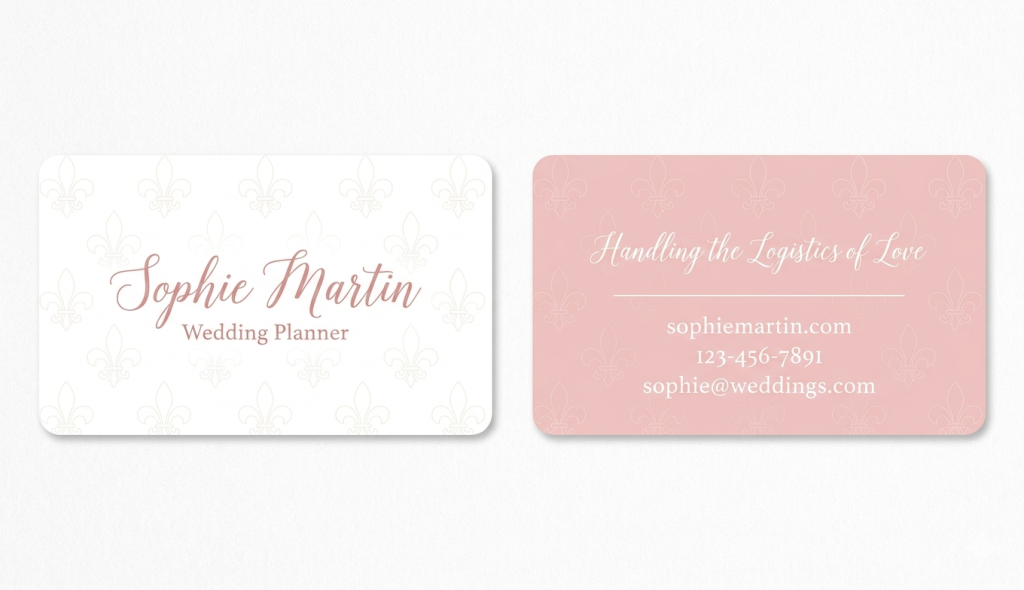
For example, a wedding planner can use this prompt for a business card:
Romantic minimalist business card with a pink and white color palette, script fonts, and a thin-line fleur-de-lis pattern. 3.5” x 2” business card layout in CMYK mode, 350 DPI, and high-resolution print files.
Text on the Font:
Sophie Martin
Wedding Planner
Text on the Back:
Handling the Logistics of Love
sophie@weddings.com
sophiemartin.com
123-456-7891
You can also share exactly what you want for the design layout. Here’s an example of what directions you might want to include:
Front of the business card: Name in 10 pt. Serif font in the middle of the card; job title underneath name in 8 pt font; company logo in upper right corner
Back of the business card: Company slogan in the middle of the card in a 10 pt. Serif font; email, phone number, and website underneath the slogan in 8 pt font.
Step 2: Provide Feedback
AI tools are notorious for making mistakes and producing inaccurate results. That’s why your feedback and guidance are crucial to producing prints that can professionally represent your personal brand. Ask to add, remove, or move design elements. If you want a leaf design, for example, you can ask it to change the type of leaf, the art style, or the location on the business card.
Often, AI will generate designs with the same font for all the text. You can ask for a different font for your name, job title, or any other information included in the design. Change the text size and colors to best fit your vision. Remember, text sizes on business cards should vary to create a dynamic design, and they need to be between 8 pt. and 16 pt.
For any artwork included in the design, make sure it looks correct. AI-generated artwork will often have odd inconsistencies that do not look correct, like multiple hands or lines that don’t connect in logical ways. Request the designer to polish up any design that doesn’t look quite right.
If you aren’t in love with the first design it creates, don’t be afraid to ask it to start fresh. At that point, return to your original prompt and tweak your request to guide the AI in the right direction. This could include sharing specific fonts or even uploading design inspiration.
Step 3: Prepare Print-Ready Files
A frequent issue customers face is that the files they download from different AI platforms are not automatically ready for printing. This can result in blurry business card prints or rejected file uploads.
When you just ask for a design, it might not create a file that would work for ordering prints. Typically, the AI platforms will first generate one image that shows both sides of the business card. Provide feedback on those designs before asking for a design file.
Once you’ve settled on a design, you need to request individual files for each side of the business card. Ask for true print-ready files at 3.5” x 2” with 0.1″ bleed, 350 DPI, and CMYK color mode. Make sure to request separate design files for the front layout and the back layout.
This is where ChatGPT and Gemini tend to make significant errors. Sometimes, it will not provide this the first time you ask. Often, the design will be different from what was first provided. This is because it will often turn the initial design it provided into vector artwork, which are drastically simplified versions of the design.
If this step is tripping you up, there are two options. One: Continue providing feedback on the vector files but know that these designs will often lack depth and dimension. They will typically be a less detailed version of the original design it shared. Two: Ask for a JPG file instead of a PDF. This will typically prevent the AI generator from using vector designs.
Step 4: Download Files
When your print files are ready, download each side of your business card as individual files. At this point, you can manually edit the files to include a QR code. Upload your business card files to GotPrint.com when you’re ready. If you want to know how to print from ChatGPT, it’s quite easy. Just ask for a PDF of JPG file, download what it provides, double check the design, then share it with GotPrint.com
Step 5: Order Business Cards
Crafting your design is only one part of the process. You need to find the best paper stock for your business cards (hint: most people go with 14 pt. Gloss, but you can choose a high-end 16 pt. Premium Matte or an ultra-thick 38 pt. Trifecta). If you want to feel confident in your decision, order a Free Sample Kit from GotPrint and test all our paper materials. You also need to know how many business cards to order. Depending on the paper stock you select, you can order as few as 25 or as many as 100,000 business cards. Use our guide to determine how many cards you’ll need for any given industry or event.
Why Choose AI Business Cards
AI does offer advantages to the design process. It’s fast and, if you’re using a free platform, cost-efficient. It also removes any extended feedback between you and a design team.
- Unique Design: This design process doesn’t rely on pre-made templates that other people might have. Asking an AI generator to tweak the layout results in a one-of-a-kind business card.
- Speed: Receive a business card design in seconds and communicate edits immediately. You can make a business card in a fraction of the time it would take to go through a traditional designer.
The Dos and Don’ts for Making AI-Generated Business Cards
Do: Use Specific Prompts
- Share precise language for design styles and layout guidelines. Add design styles, exact text, and color palettes.
Don’t: Be Afraid to Make Edits
- Don’t just accept the first design it gives you. Ask to add or remove design elements, personalize text, change font, or improve colors.
Do: Ask for Multiple Design Layouts
- Browse different options to find the perfect business card layout.
Don’t: Use an AI-Generated QR Code
- Most of the QR codes generated by AI won’t lead to the correct link. Make your own QR code and add it to the layout later.
Do: Double-Check the Details
- Make sure everything is spelled correctly, the phone number and email address are accurate, and your design doesn’t have any glaring mistakes.
Don’t: Forget to Check the File Requirements
- Each printing company has different rules for the files you upload. Make sure the AI-generated file has the right dimensions, bleed, DPI, and color mode.
At GotPrint, we understand the ease that AI offers when creating business cards. However, we cannot guarantee that these designs will always be compatible with our design tools. If you want to design business cards with 100% confidence, we recommend using our pre-made, free business card templates. These layouts are fully customizable, allowing you to change the text, fonts, colors, and design elements. We offer a wide variety of templates for multiple creative and professional industries. Personalizing business cards made by professional designers ensures the files were made with the correct resolution, bleed, color mode, and dimensions. Browse our professional, free business card designs to get started.